Remove the white background from the image

In this article, you will learn how to remove a white background (or any other color) from an image using PowerPoint. This can be useful if you want to quickly remove the background from images and make them transparent without any software. Backgrounds can be a major distraction when you're trying to present your presentation professionally. One of the best ways to remove backgrounds made up of a single color is to use the [Tool Name] tool. Setting the transparent color This will allow you to remove the background without affecting the other content in your image. .
To see how this works, you can watch Video Or if you prefer reading, you can skip the video and follow the steps we will mention:
How to remove the background from images and make them transparent without software

1- Select the image in which you want to convert the white color (or any other color) to a transparent area. .
2- From Format list> Choosing the color
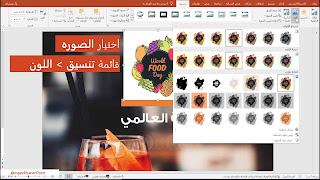
3- Then, after that, choose Set transparent color

4- The mouse pointer will change to a pen with a triangular tip. When this happens, go to the image and click on it. the color The program will delete the item you want to remove directly. .


5- This method allowed me to quickly edit the image without needing to use other programs. Note that this method can only be used to remove backgrounds of a single color. If there is more than one color in the background, you can use the background removal tool that we explained in [the previous section]. Another article (click here to go to it)