
Play an audio clip through PowerPoint slides

An audio clip can be used in PowerPoint to illustrate a point or to entertain the listener. In this article, we will provide an easy way to add an audio clip and adjust it so that it plays during the presentation. .
The importance of using sound in a PowerPoint presentation
Sound is an important part of any PowerPoint presentation. By using sound, you can enhance your visual presentation and make it more engaging for the audience, helping to keep them interested. You can use sound to help explain your points, add drama to your slides, or simply provide entertainment to the audience. Whether you are presenting information on a technical topic or describing a personal experience, incorporating sound into your PowerPoint will help ensure that you capture the attention of everyone in the room.
To use audio effectively in a PowerPoint presentation, you first need to understand how to use audio clips in PowerPoint. The program allows you to place audio clips to play on a single slide, multiple slides, or play continuously in the background during the slide show, repeating the audio if it ends before the presentation concludes (which we will explain in this article). Additionally, you can also edit the audio clip to change its start and end positions, which we explained in a previous article. (Click here to go to it) .
To see how this works, you can watch Video If you prefer to read, you can skip the video and follow the steps below:
Playing an audio file as background across multiple slides in PowerPoint
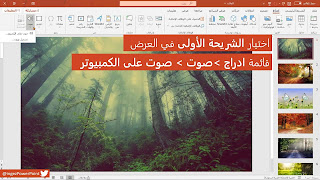
1- Select the first slide in the presentation, then from the menu Inserts > Voice > Sound on the computer
2- Locate the audio file you want to use, then select Insertion, A headset icon will appear in the middle of the chip.

3- Select the headset icon on the SIM card, then from the menu Operating options > Select Run in the background

4- Selecting background operation automatically selects the following options:
- transformation Operation from Click sequence to automatically
- Selection Chip operation
- Selection Hide during display
- Selection Repeat until stopped
.jpg "4- Selecting background operation automatically selects the following options:")
5- Now the sound will play at the beginning of the presentation and across the slides, and will repeat if the audio clip ends before the presentation ends!